![zuub logo-3.png]](https://help.zuub.com/hs-fs/hubfs/zuub%20logo-3.png?height=40&name=zuub%20logo-3.png)
When the ticket comes into the inbox that states "New Stripe Customer" you will follow the steps below.
1. Navigate to the ticket view. You can do this from the inbox by clicking on New Stripe Customer
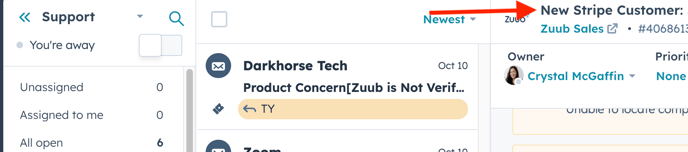
2. Open up the company view in another window so that you can have it open for reference while filling out the ticket and to update the fields that need it later on.
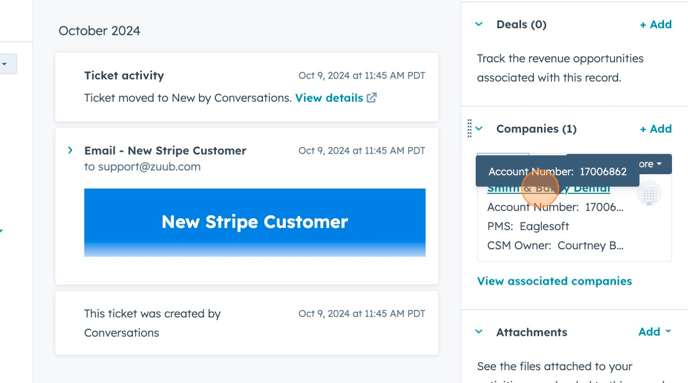
3. Expand the email by clicking on the email name. 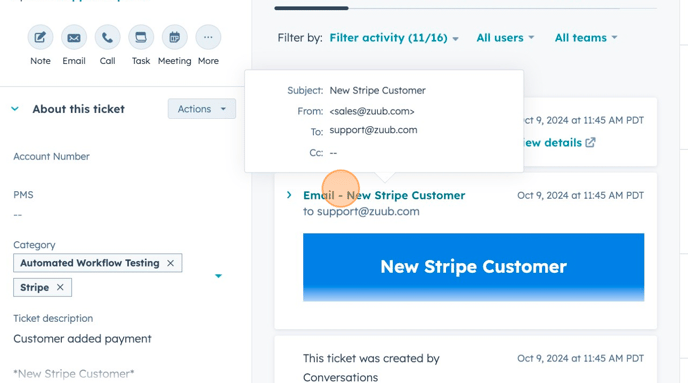
4. Copy the email address
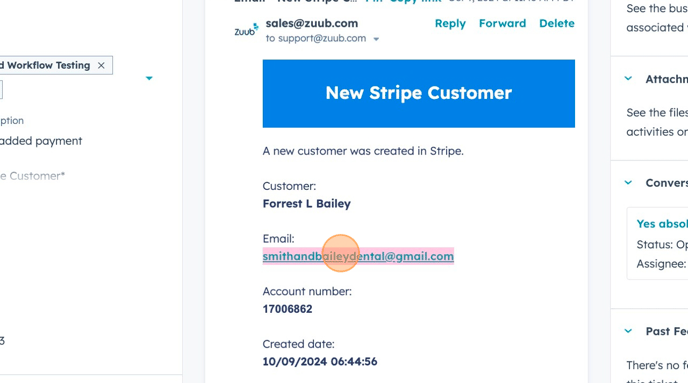
5. Click +Add next to contacts at the top right of the ticket.
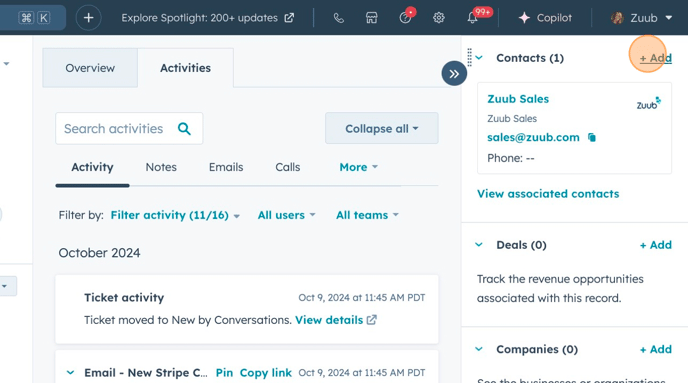
6. Past the contact email and select contact from the list that populates. If you cannot find the contact, you can create a new contact.
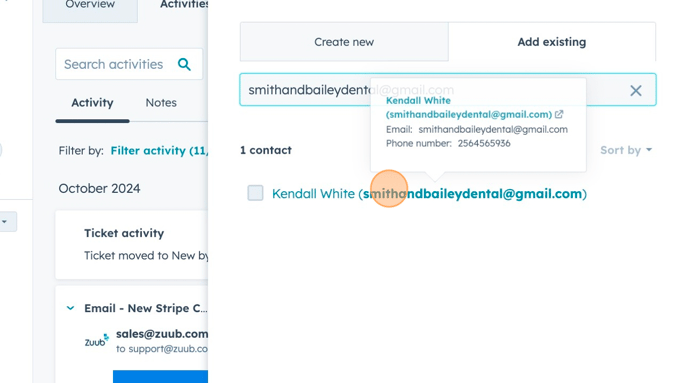
7. Click Next at the bottom of the contact page.
8. Click Save.
9. Do a hard refresh of your browser so that the company name will show up on the ticket view.

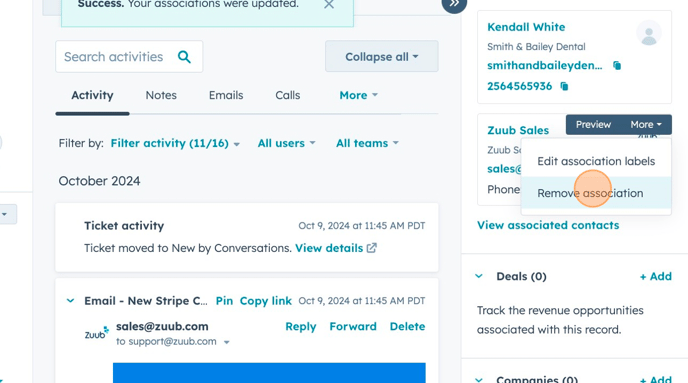
10. Under contacts you want to remove Zuub Sales. You will click more and then remove association.
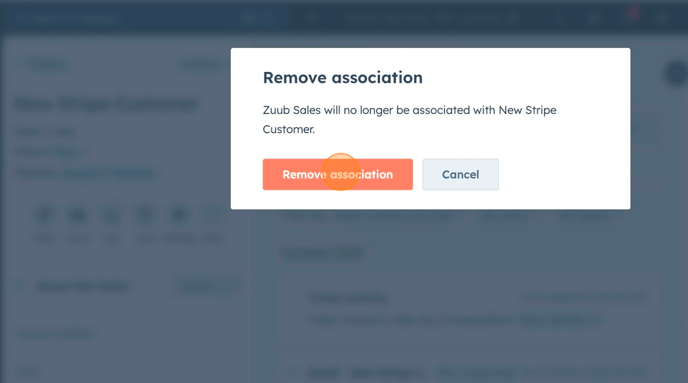
11. Confirm action by clicking remove association on the pop up window.
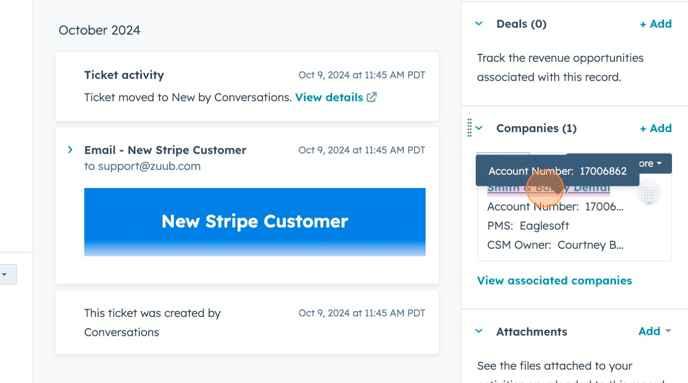
12. Copy the company name from the right hand side under companies
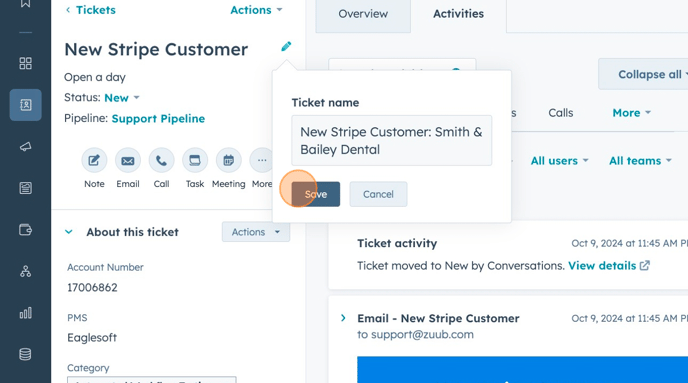
13. Click the edit pencil in the top left next to ticket name and update the ticket name to New Stripe Customer: Company Name and then click save
14. Go back to the expanded email and copy the account number
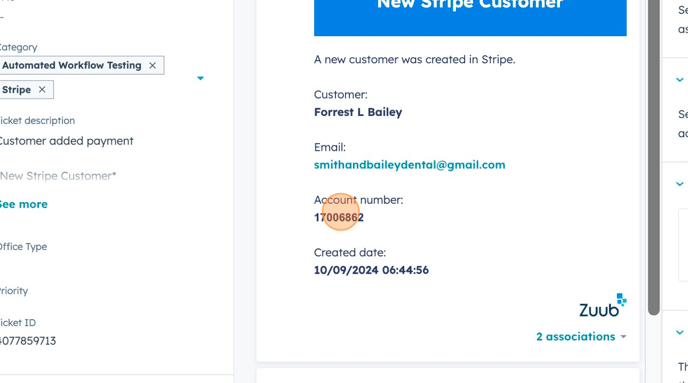
15. Under About this ticket, you want to add the account number and office type. 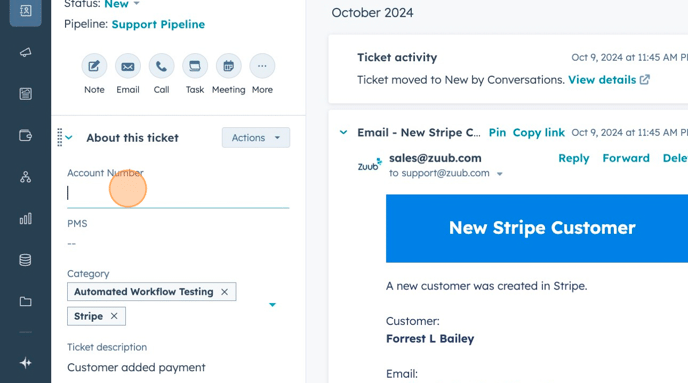
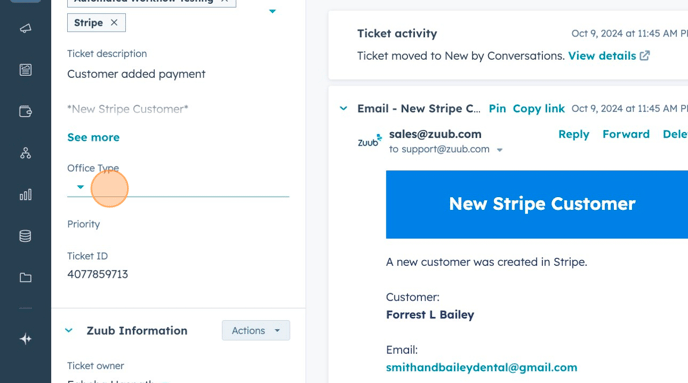
16. Under Zuub Information you will assign ticket owner, CSM Owner, IM Owner and Sales Lead. (All information that you will find on the company view)
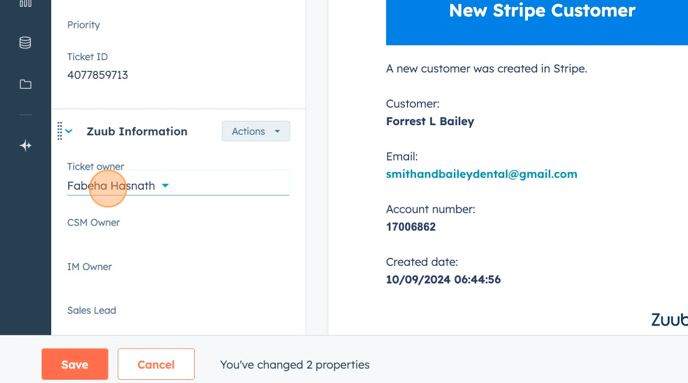
17. Once that is all filled out you will click Save.
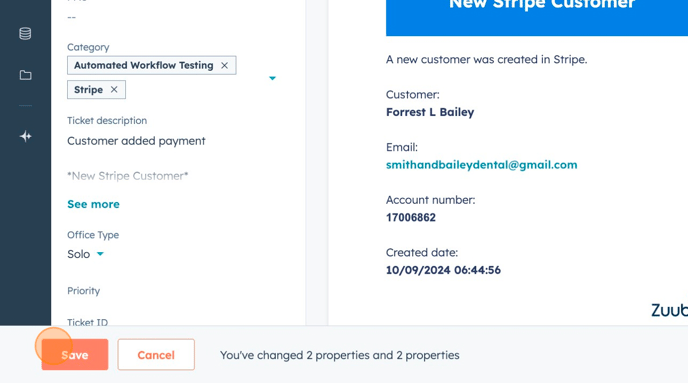
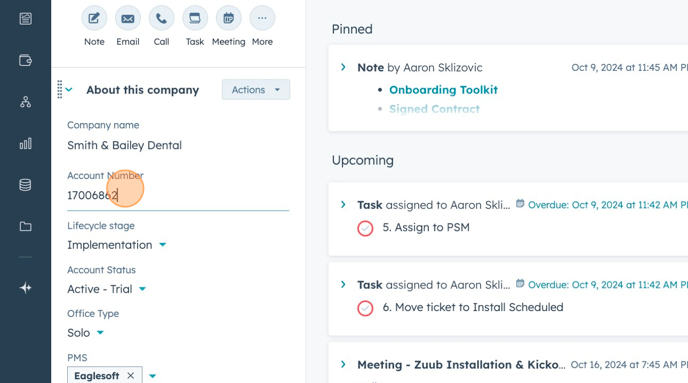
18. Copy the account number and switch to the company view tab, you will add the account number under the about this company section.
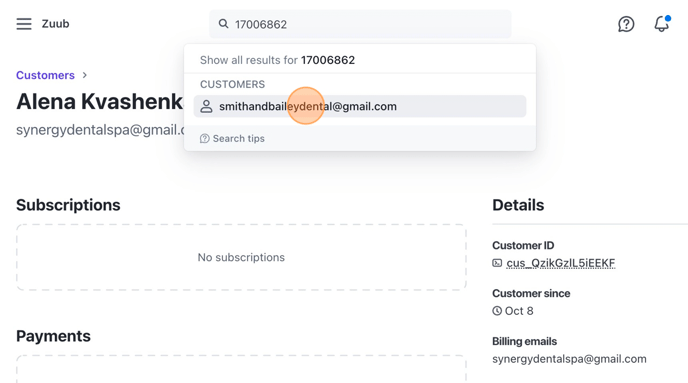
19. In a new google window, you will navigate to Stripe, get logged in and using the search bar at the top of the page you will search for the company using the account number and select the email address that populates.
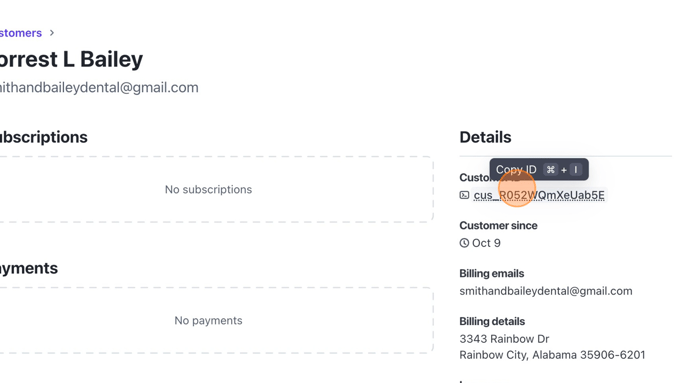
20. Once you are on the company's stripe account page, you will look at the left hand side under details and click to copy the customer id (cus_XXXXXXXXXXXX).
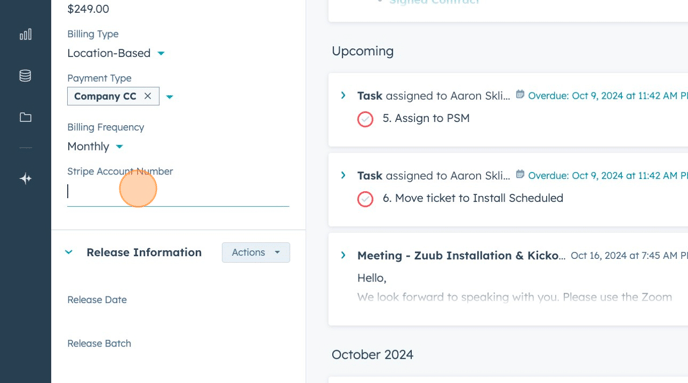
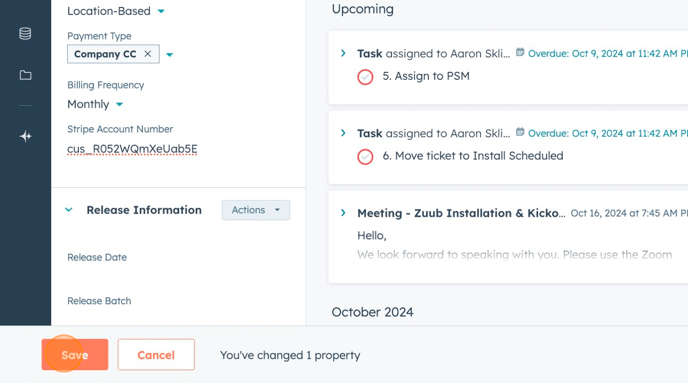
21. Navigate back to HubSpot company page view and scroll down to billing details on the left hand side and add the stripe customer id in the field labeled Stripe Account Number.
22. Click Save at the bottom of the page.
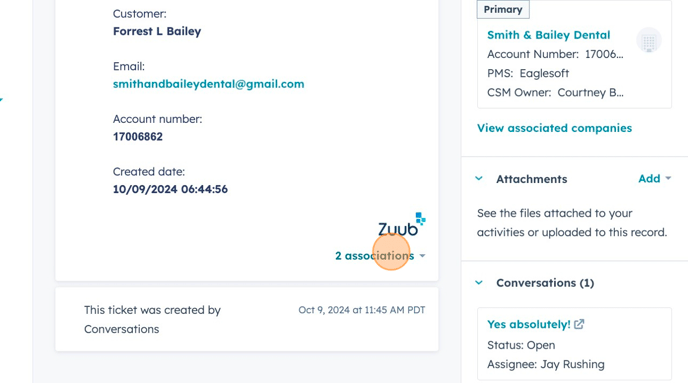
23. Associate the email with the company and contact by expanding the email and clicking associations.
24. Click companies > company name > select company name
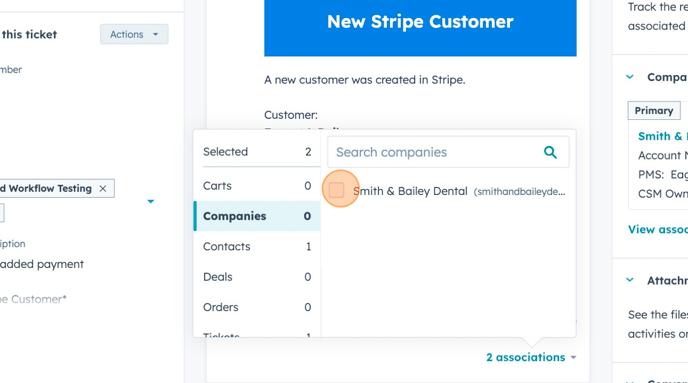
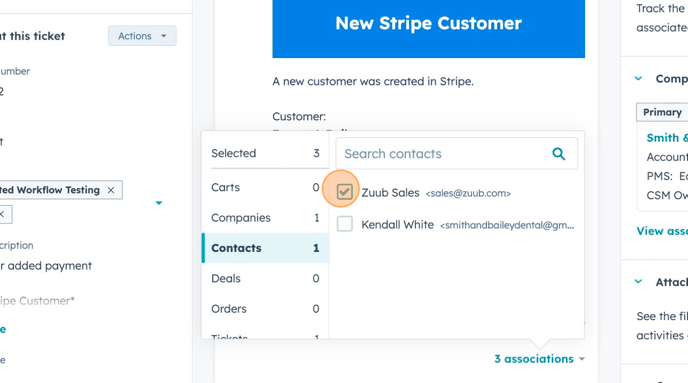
25. Click contacts > unselect Zuub Sales and select contact name.
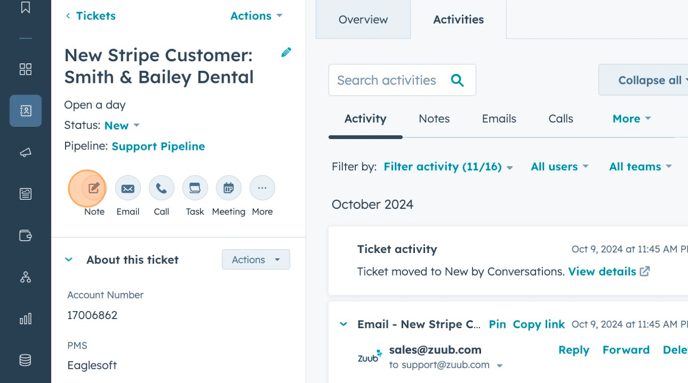
26. On the top left select the note icon and add a note stating :
"Added associations and company to new stripe ticket"
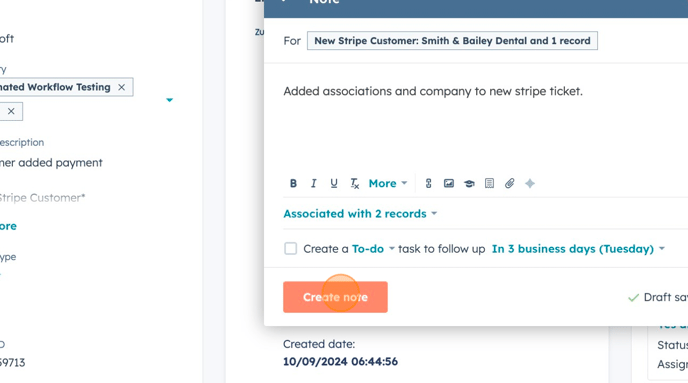
27. Click Create Note
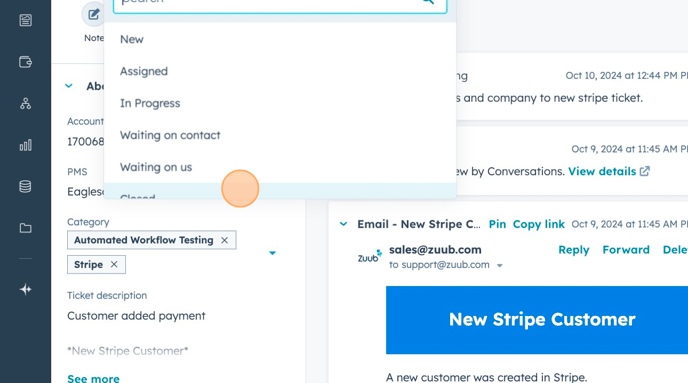
28. Update ticket status to closed
Resource Video:
Have to create a contact: Click here.