
Prior to Set up
Prior to registering for the new account, a source code from the office’s recent EOB is needed. This will be utilized when finalizing the account registration.- Sign into the Ameritas Portal using the office's credentials.
- Under 'Find a Payment,' search for the last 30 days and click on any payment document within there.
- The source code will be listed out.
.png?width=511&height=356&name=Ameritas%20Payment%20Summary%20Sample%20(1).png)
- Make note of this source code, as it will be utilized when finalizing the account creation.
Set up Ameritas Two-Factor: Step-by-Step
- Navigate to the Ameritas Portal.
- Under the 'Business Accounts' tab select 'Provider Sign In.'
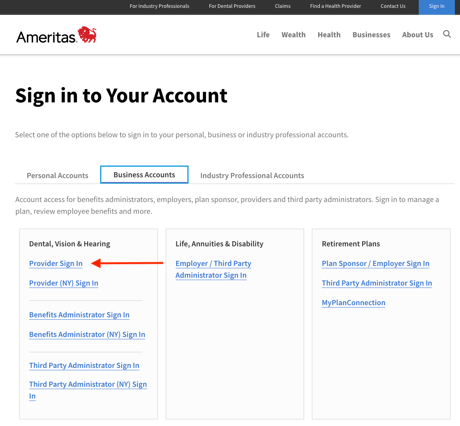
- Under the 'first-time users' section, select 'Register Now'.
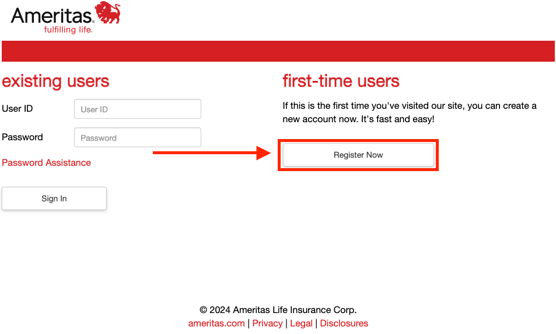
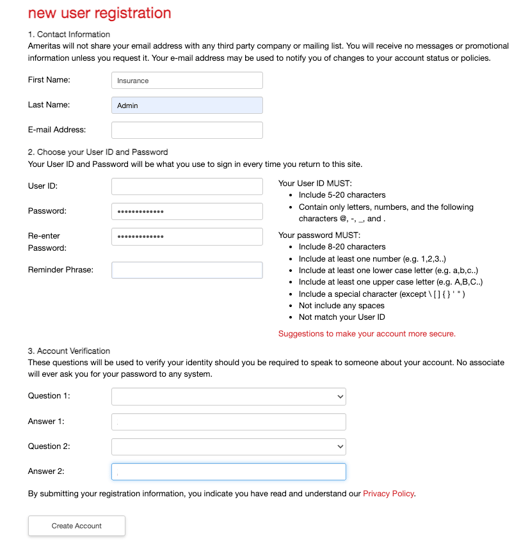
- On the 'new user registration' page, please do the following:
- In the '1. Contact Information' section, input the following Zuub provided credentials:
- First Name: Insurance
- Last Name: Admin
- Email Address: Zuub generated email address
- In the '2. Choose your User ID and Password' section, input the following information:
- User ID:
- Password:
- Re-enter password:
- Reminder Phrase:
- In the '3. Account Verification' section, select security questions and answers:
- In the '1. Contact Information' section, input the following Zuub provided credentials:
- Click the 'Create Account' button.
- Sign in using the newly created credentials.
- Select ‘Get Started’ to complete the 2FA setup process.
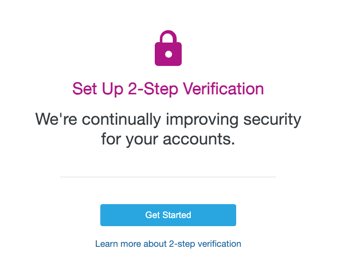
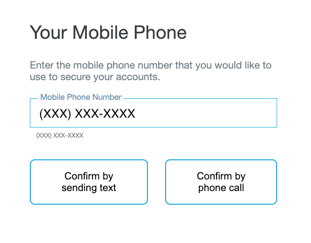
- Select ‘Mobile Phone’ to set up the SMS 2FA.
- Enter the Zuub generated phone number.
- Click ‘Confirm by sending text.’
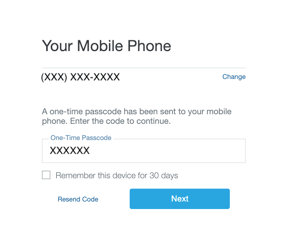
- Retrieve the 2FA code.
- Input 2FA code and click ‘Next.’
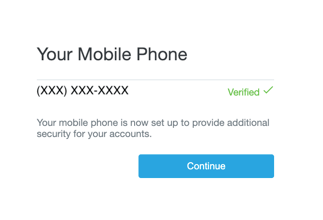
- Click ‘Continue’ once verification is successful.
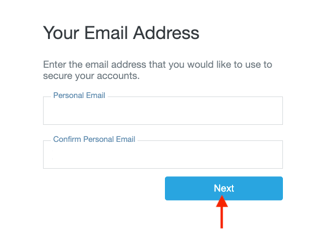
- Select ‘Email Address’ to complete the 2FA setup process.
- Enter Zuub generated email address.
- Click ‘Next.’
- Retrieve the 2FA email code.
- Input 2FA code and click ‘Next.’
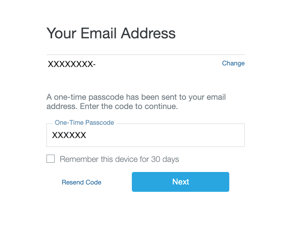
- Click ‘Continue’ once verification is successful.
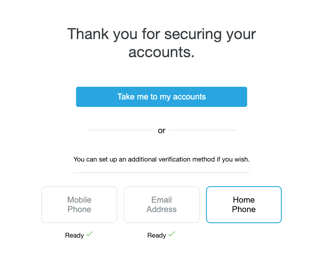
- Select ‘Take me to my accounts.’
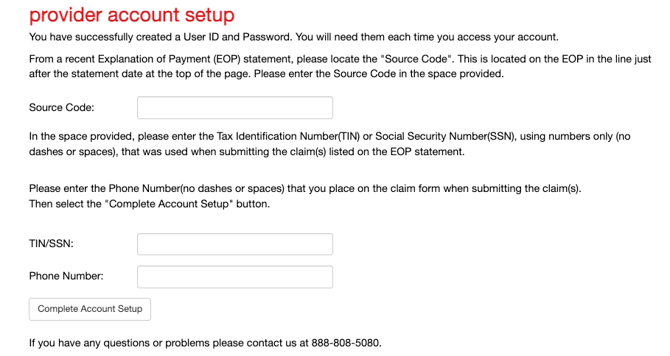
- Input the following and click ‘Complete Account Setup’:
- Source Code
- Tax ID number
- Office's phone number (note: this number must match what Ameritas has on file for this office)
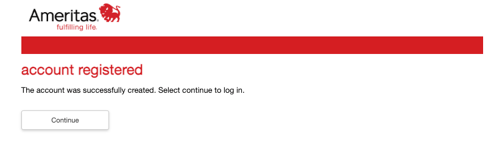
- Account creation is complete, and the below message should appear.
This resource was updated 11/14/2025.