
Pre-Setup Notes
There are two ways to set up DD of MA credentials. Instructions are provided for each:
- Using an Existing Account
- Note: Only Admin users can add new users. If there is no option to add users, a new account will need to be registered.
- Registering a New Account
- For this option, you will need the office’s Delta Dental of Massachusetts Business ID, which can be found on a recent Delta Dental of Massachusetts EOB.
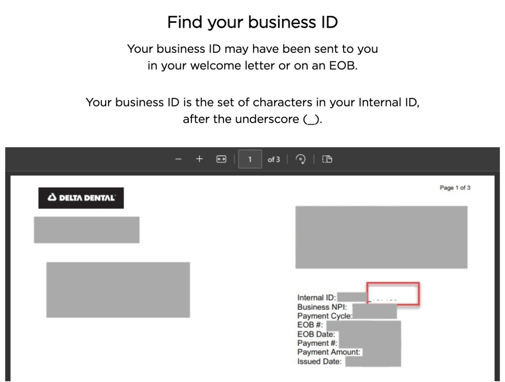
- For this option, you will need the office’s Delta Dental of Massachusetts Business ID, which can be found on a recent Delta Dental of Massachusetts EOB.
Set up DD of MA 2FA Using an Existing Account: Step-by-Step
- Sign into your Delta Dental of Massachusetts account.
- Under 'Practice Tools' select 'User Access'

- Click the 'Add User' button
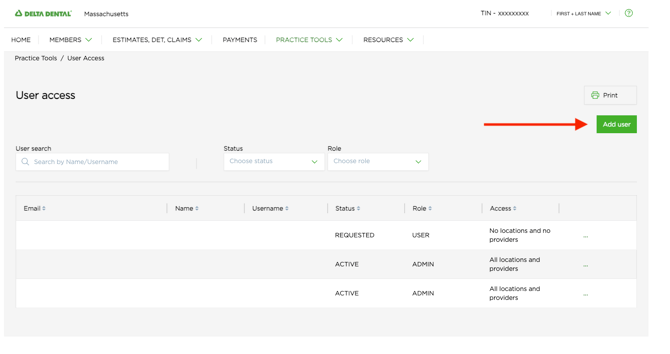
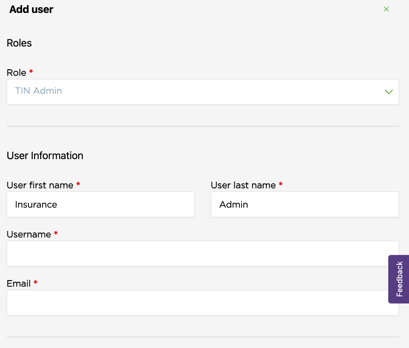
- Add the required information
- Under 'Role' select TIN Admin
- Under 'User Information' input the below:
- User First Name: Insurance
- User Last Name: Admin
- Username:
- Email: Zuub generated email address
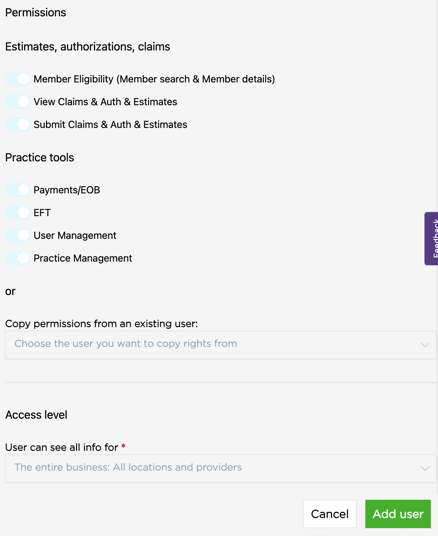
- Under 'Permissions' enable all options
- Click 'Add user' button
- Navigate to the email address and click on the registration link (Note - This link expires in 7 days.)
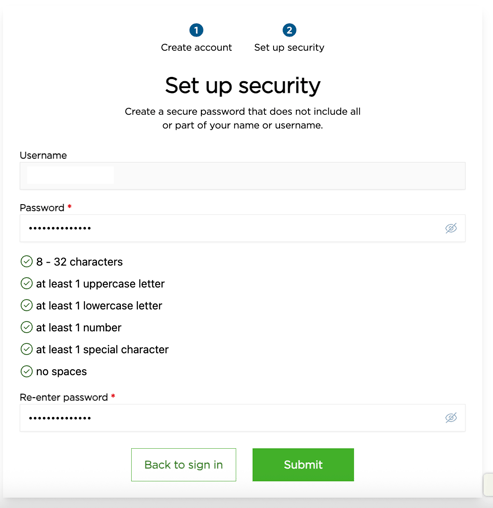
- Input password and click submit.
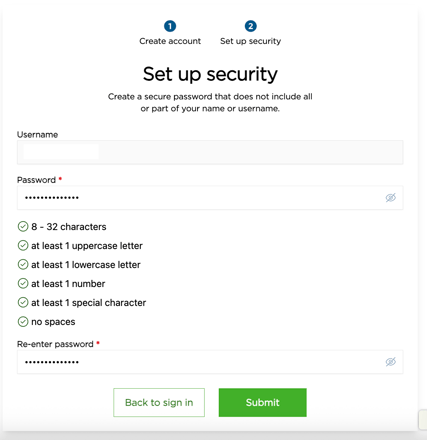
Account creation is complete!
Set up Delta Dental of Massachusetts 2FA by Registering a New Account: Step-by-Step
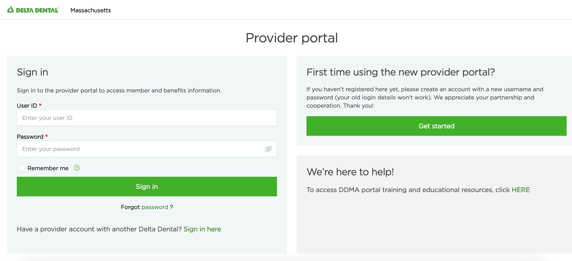
- Navigate to the Delta Dental of Massachusetts portal.
- Click 'Get Started'
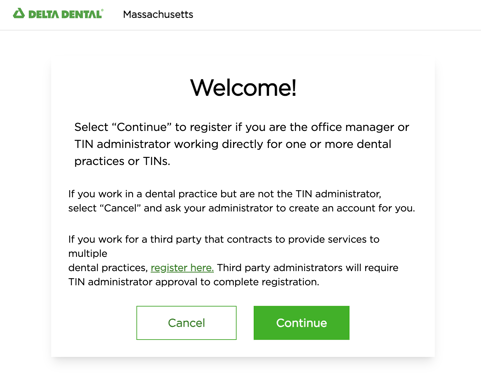
- Click ‘Continue’
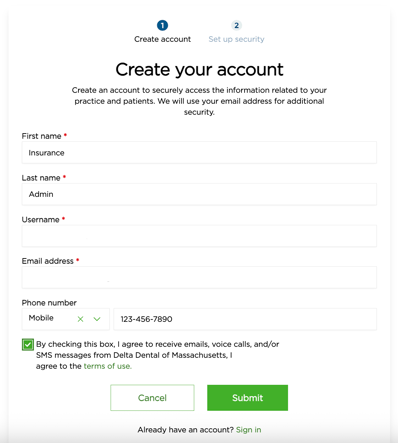
- Input the following information and click ‘Submit.’
- First Name: Insurance
- Last Name: Admin
- Username:
- Email Address: Zuub generated email address
- Phone Number Type: Mobile
- Phone Number: Office's phone number
- Agree to the SMS terms and conditions box
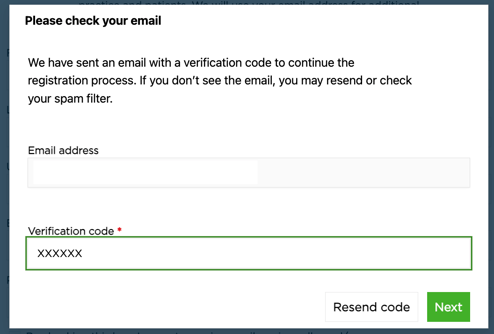
- Navigate to the email address and retrieve the 2FA code.
- Input verification code and click ‘Next.’
- Input password and click ‘Submit.’
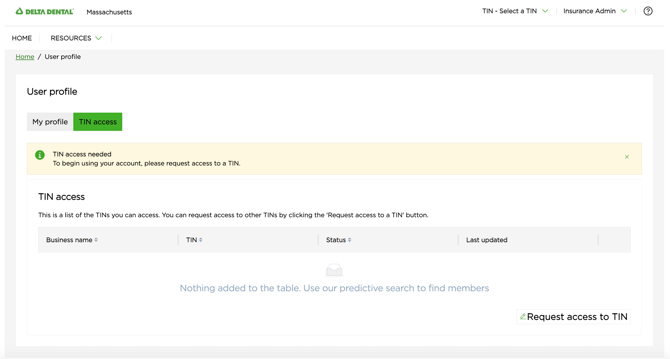
- Click ‘Request access to TIN’
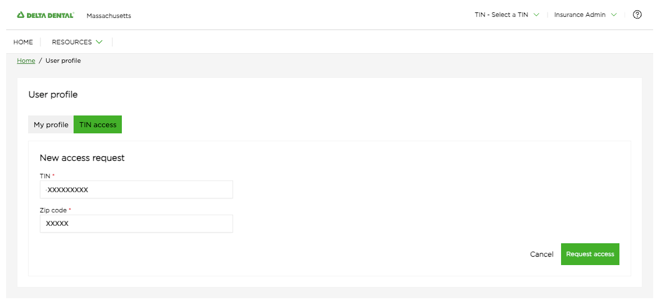
- Input the following and click ‘Request Access.’
- Practice’s TIN Number
- Office Zip Code
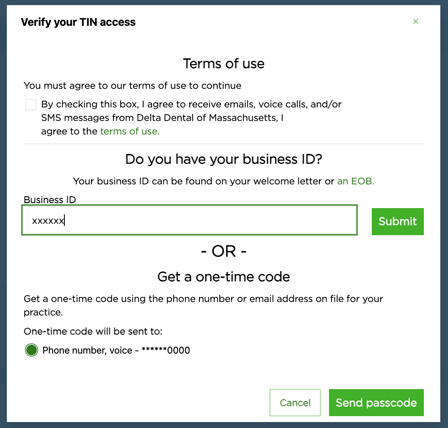
- On the next screen, complete the following and click ‘Submit.’:
- Agree to the terms and conditions box
- Input Business ID provided by practice
This resource was updated 11/17/2025.