
Pre-Setup Notes
We recommend creating Zuub specific logins for the below main Delta Dental sites:
- Delta Dental - Eligibility and benefits for the below states are pulled via their own state payer portals. One Zuub specific Delta Dental credential is required. However, to ensure optimal performance we recommend creating an additional Zuub specific login for any of the states that are a top payer for an office. While a new account can be registered at deltadental.com, it's recommended to create the credential on deltadentalins.com, as the site is more stable.
- Delta Dental Individual
- Alaska
- Arkansas
- Colorado
- Idaho
- Illinois
- Iowa
- Kansas
- Massachusetts
- Missouri
- New Jersey
- Northeast (Maine, New Hampshire, Vermont)
- Oklahoma
- Oregon
- South Dakota
- Virginia
- Washington
- Wisconsin
- Wyoming
- Delta Dental Insurance Company (deltadentalins.com) - Eligibility and benefits for the below states are pulled from deltadentalins.com. One set of Zuub specific logins are required.
- Alabama
- California
- Delaware
- Florida
- Georgia
- Louisiana
- Maryland
- Mississippi
- Montana
- New York
- Nevada
- Pennsylvania
- Puerto Rico
- Texas
- Utah
- Washington DC
- West Virginia
- Delta Dental Toolkit (dentalofficetoolkit.com) - Eligibility and benefits for the below states are pulled from dentalofficetoolkit.com. One set of Zuub specific logins are required for dentalofficetoolkit.com.
- Arizona
- California Federal
- Indiana
- Kentucky
- Michigan
- Minnesota
- Nebraska
- New Mexico
- North Carolina
- Ohio
- Tennessee
Please note that there is a separate guide for Delta Dental and Delta Dental Insurance Company.
Set up Delta Dental Toolkit: Step-by-Step
- Navigate to the Delta Dental Toolkit portal.
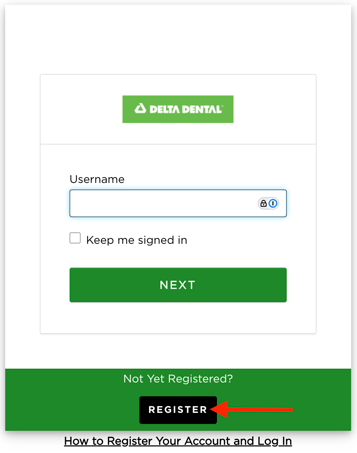
- Click the 'Register button.'
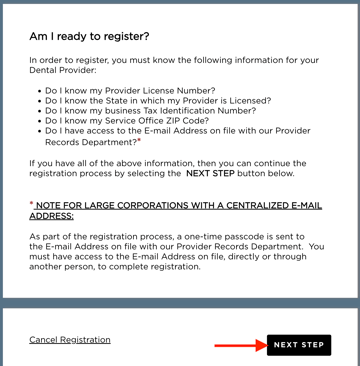
- Click 'Next Step.'
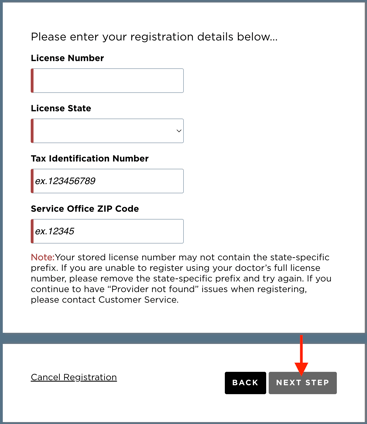
- Enter the following required information and click 'Next Step.'
- License Number:
- License State:
- Tax ID:
- Service Office ZIP Code:
- Add the requestor's name.
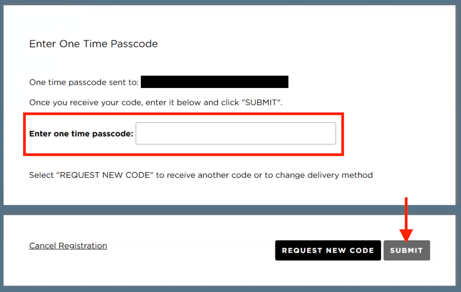
- A one-time passcode will be sent to the email address that Delta Dental Toolkit has on file for the office. Enter that code and click 'Submit.'
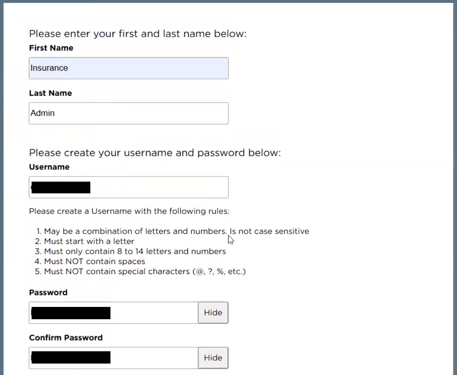
- Fill out the required information and click 'submit':
- First Name: Insurance
- Last Name: Admin
- Note: If creating multiple logins under the same account for DSOs, the first and last name need to be unique. We recommend adding a number at the end of the last name. (e.g. Admin1, Admin2...etc).
- Username:
- Password:
- Confirm password:
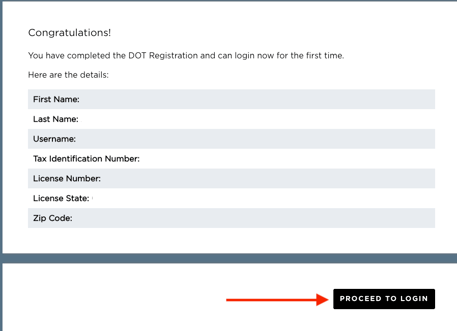
- Click 'proceed to login'
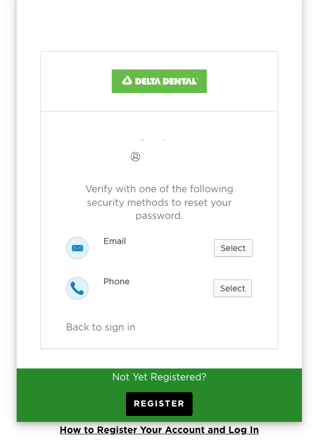
- Login to the Delta Dental Toolkit portal using the login information created above.
- Select either the phone or email option to validate the 2FA.
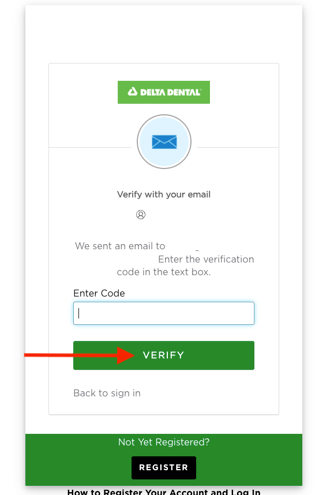
- Navigate to retrieve the 2FA code and input it in the box. Click 'Verify.'
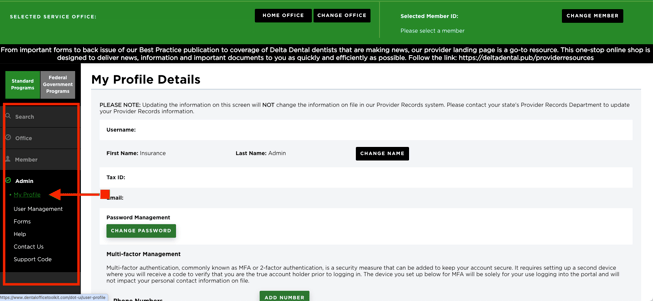
- Once signed in, you will land on the homepage. Navigate to the side navigation bar in the left side of the page.
- Under the 'Admin' tab, select 'My Profile'
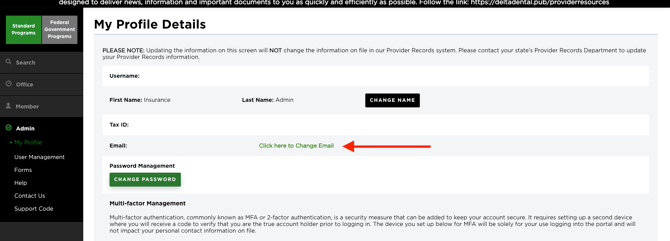
- Under the 'My Profile Details' section, select 'Click here to Change Email.' Note: It defaults to the office's email address, so this step is important to ensure new 2FA email verifications go to the Zuub generated email address rather than the office's.
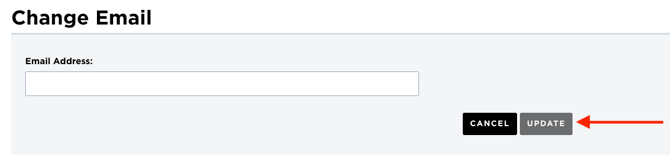
- Enter the Zuub generated email address and click 'Update.'
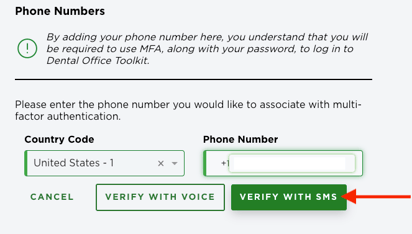
- Navigate further down the page to the 'Multi-factor Management' section and click 'Add number.'
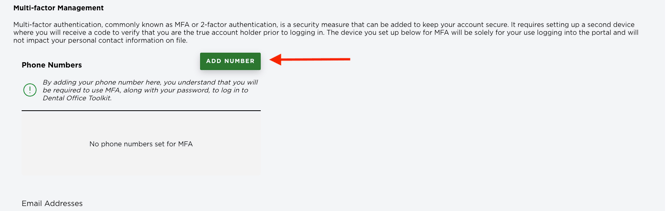
- Enter the Zuub generated phone number and select 'verify with SMS.'
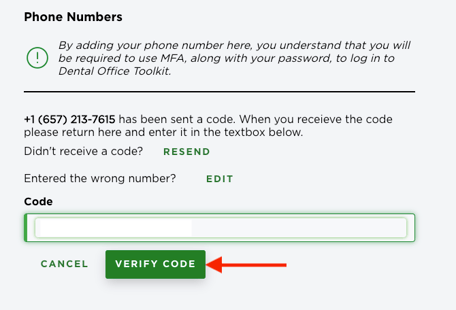
- Retrieve and enter the 2FA SMS code and click 'Verify Code.'
Account creation is complete!
This resource was updated 11/14/2025.