
Pre-Setup Notes
In order to finalize Zuub specific UMR payer credentials, a Zuub specific One Healthcare credential needs to have been created. If this is complete, please move forward with finalizing UMR. If this has not been completed, please create one by following the step by step instructions outlined here.
Finalize UMR 2FA: Step-by-Step
- Navigate to the UMR portal.
- Under 'Provider sign in,' click 'Sign In.'
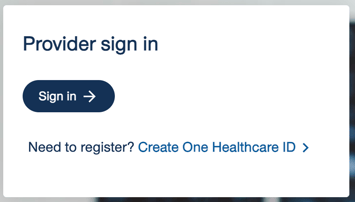
- Sign in using the Zuub specific One Healthcare ID previously created.
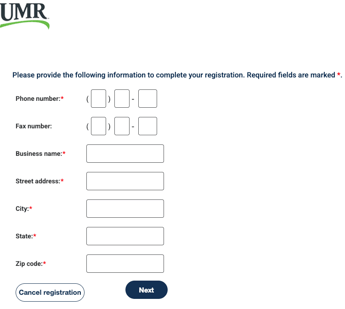
- Add the required information and click 'Next':
- Phone number: Office’s phone number
- Fax number: Office’s phone number
- Business name: Office’s name (Note: only 30 characters are allowed, so if needed remove some characters. These can be added back later.)
- Street address: Office’s address (Note: only 20 characters are allowed, so if needed remove some characters. These can be added back later.)
- City: Office’s city
- State: Office’s state
- Zip code: Office’s zip code
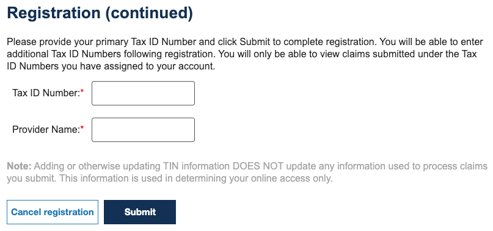
- Add the office’s tax ID number and provider name, and click 'Submit'
- Click 'Finished'
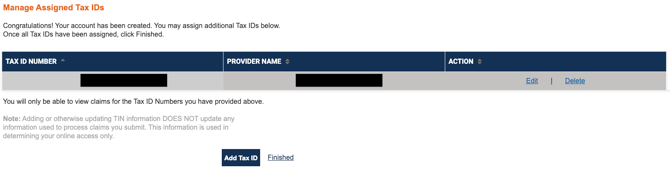
- If the practice name or address needs to be adjusted because characters were removed due to the character limit, hover over 'My account' and select 'Account settings.'
- Update the necessary fields and click 'Save.'
- Account creation is complete!
This resource was updated 11/12/2025.