
Once a Zuub specific Delta Dental or DDIC login has been created, certain state sites require terms and conditions and/or communication preferences to be set up. If the Zuub specific login will be used for any of the below sites, please follow the step by step instructions outlined below.
- DDIC (deltadentalins.com)
- Delta Dental Individual (my.deltadentalcoversme.com)
- Delta Dental of Arkansas (my.deltadentalar.com)
- Delta Dental of New Jersey (deltadentalnj.com)
- Delta Dental of Washington (deltadentalwa.com)
Note - If the credential will be used for more than one of the above sites, it's recommended to sign into deltadental.com with the credentials and then follow the instructions below. That way you're only prompted to add the 2FA code once.
DDIC
- Sign into the DDIC portal using the Zuub specific credential.
- Terms and conditions will appear. Scroll to the bottom and click 'Agree.'
- Sign out of the account.
Delta Dental Individual
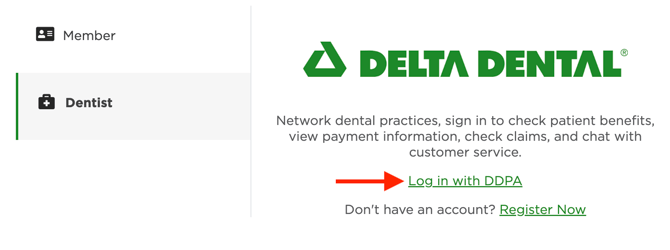
- Go to the Delta Dental Individual portal and click 'Log in with DDPA.' Use the Zuub specific credentials.
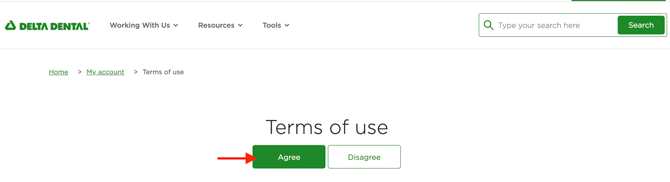
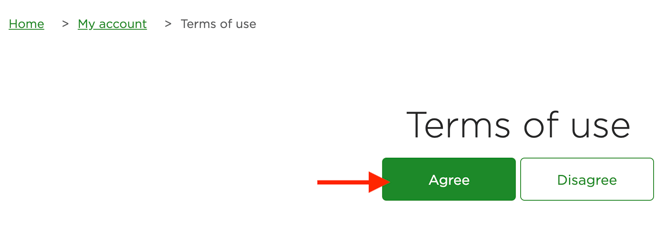
- Once signed in, under 'Terms of Use' click 'Agree.'
- Sign out of the account.
Delta Dental of Arkansas
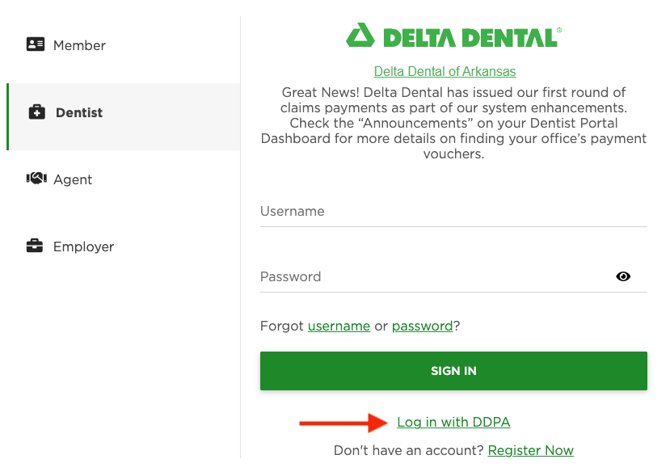
- Go to the Delta Dental of Arkansas portal and click 'Log in with DDPA.' Use the Zuub specific credentials.
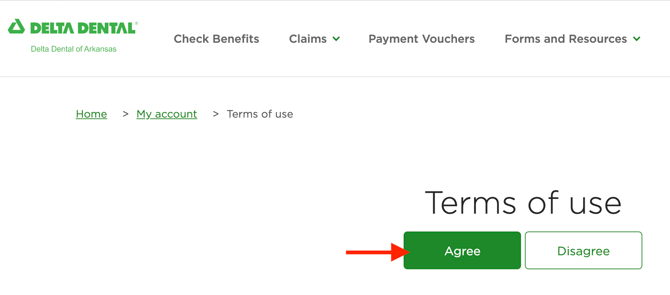
- Once signed in, under 'Terms of Use' click 'Agree.'
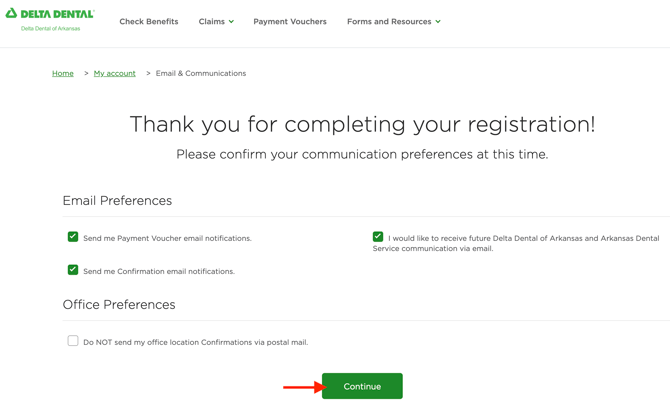
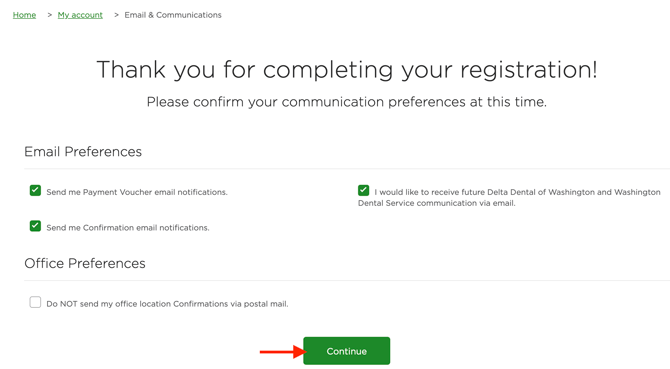
- Accept the communication preferences by clicking 'Continue.'
- Sign out of the account.
Delta Dental of New Jersey
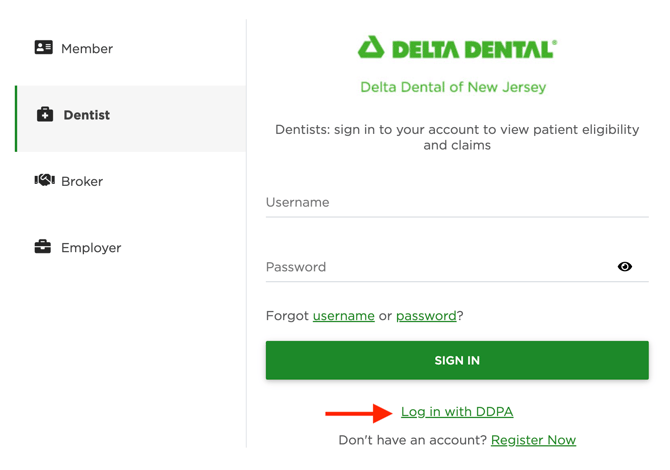
- Go to the Delta Dental of New Jersey portal and click 'Log in with DDPA.' Use the Zuub specific credentials.
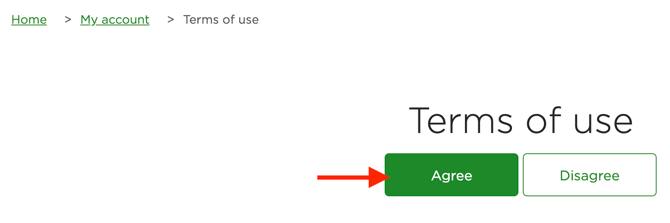
- Once signed in, under 'Terms of Use' click 'Agree.'
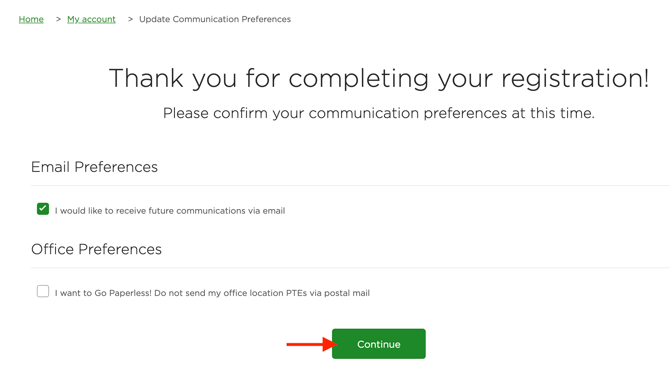
- Accept the communication preferences by clicking 'Continue.'
- Sign out of the account.
Delta Dental of Washington
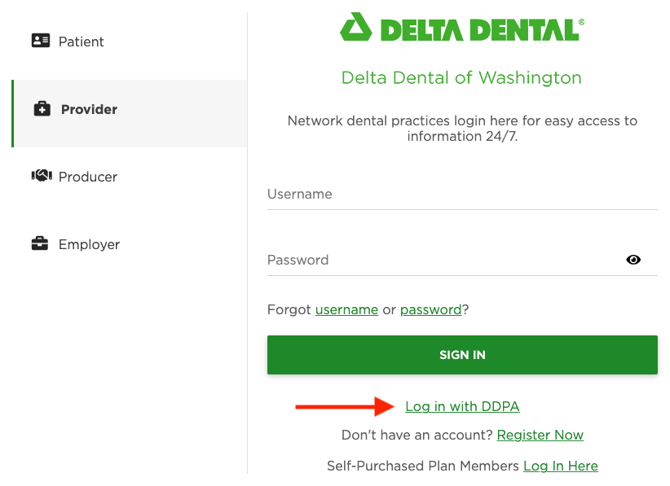
- Go to the Delta Dental of Washington portal and click 'Log in with DDPA.' Use the Zuub specific credentials.
- Once signed in, under 'Terms of Use' click 'Agree.'
- Accept the communication preferences by clicking 'Continue.'
- Sign out of the account.
This resource was updated 11/14/2025.