
Set up Skygen 2FA: Step-by-Step
- Let Zuub know you’d like to set up a Skygen Dental Hub (app.dentalhub.com) 2FA solution by reaching out to your designated Customer Success Manager. You can also email Zuub Support at support@zuub.com, or chat with us via your Zuub portal.
- Zuub will assign an email address that needs to be added as a user into your existing Skygen account. This can be completed by your Account Administrator at www.dentalhub.com/dental-practices.
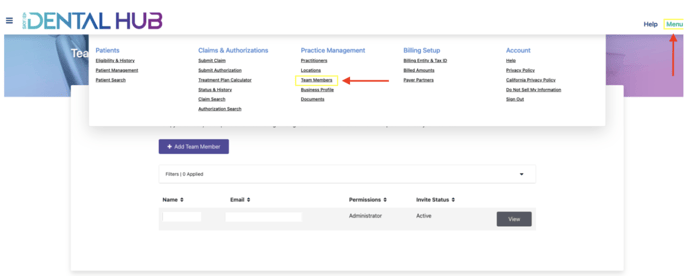
- Once you’ve logged into the provider portal, click on “Menu,” then select “Team Members” under the “Practice Management” section.
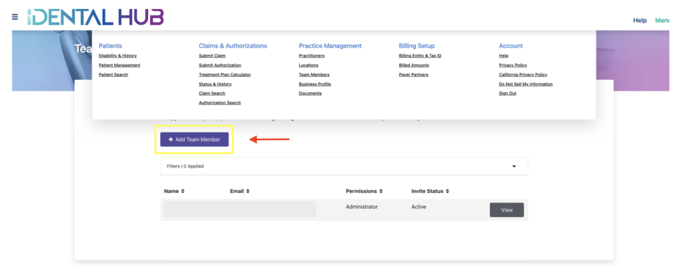
4. Click “Add Team Member” button.
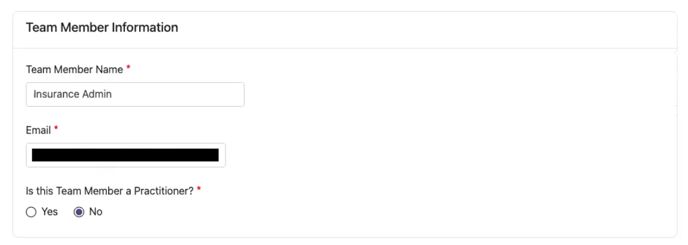
 5. Fill in the required information.
-
- Team Member Name: Insurance Admin
- Email: Add the email address Zuub provided to you
- Is this Team Member a Practitioner: No
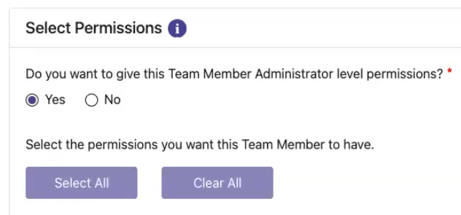
- Do you want to give this Team Member Administrator level permissions: Yes
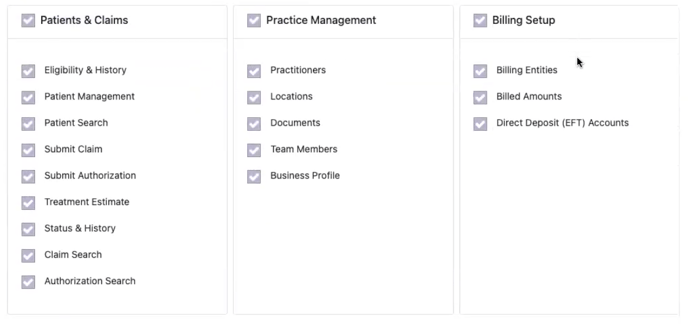
- Permissions: Leave everything selected
6. Once the provided email address is added, please inform us by emailing support@zuub.com or your Customer Success Manager. Our team will configure your account to ensure Skygen Dental Hub verifications are going through correctly, and follow up with you once the QA is complete.
This resource was updated 12/09/2024.